Deck Management
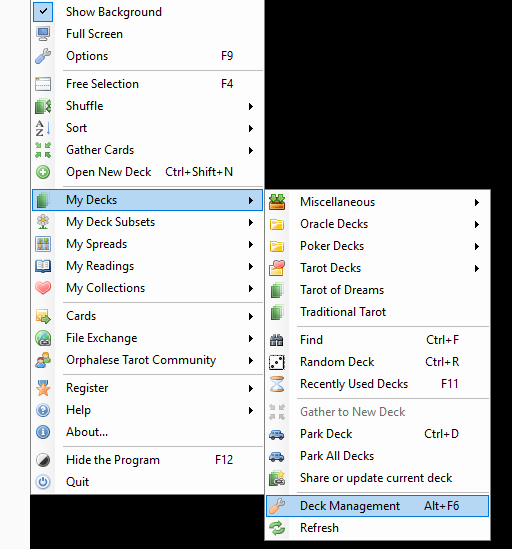
The Deck Management tool is launched from the My Decks menu.
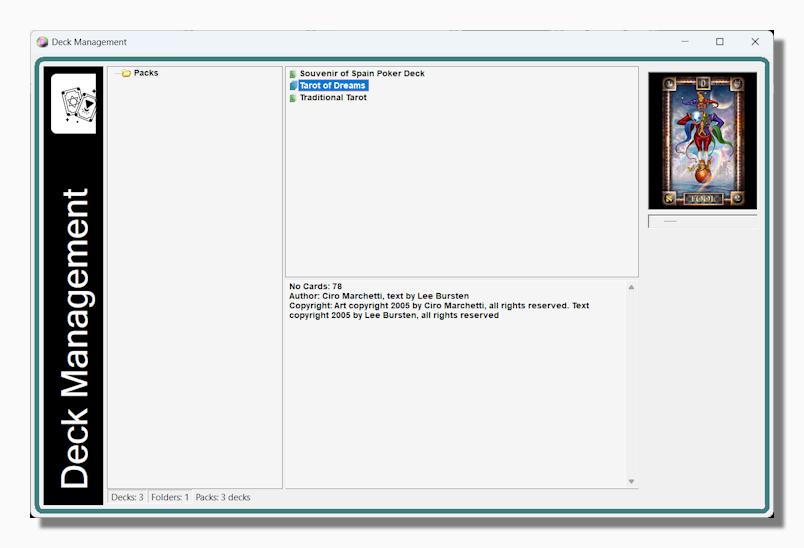
This tool offers Windows Explorer style file management. You can copy or drag decks from the right hand pane to the selected folder in the left hand pane. The lower right hand pane offers extra information about the selected item.
Right-clicking on a deck in the top pane brings up the following context menu:
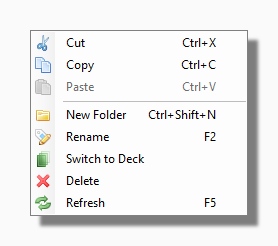
Switch to Deck switches to the new deck on the primary deck form.
Tip: You can also switch to a new deck by double clicking a deck in the upper pane.
Right-clicking on a folder in the top pane brings up the following context menu:
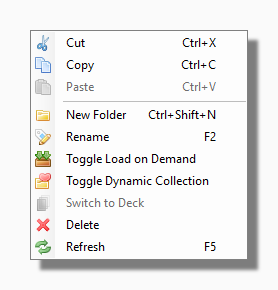
Toggle Load on Demand: This menu option sets and unsets the Load on Demand flag for the folder which makes the folder appear with the Load on Demand icon on the My Decks Menu.
Tip: Consider setting folders to Load on Demand if they contain more than twenty decks or if the decks they contain are for occasional reference only and only rarely consulted.
Toggle Dynamic Collection: This menu option sets and unsets the Dynamic Collection flag for the folder which makes the folder appear with the Dynamic Collection icon on the My Decks Menu and the My Collections Menu.
A Dynamic Collection is a special kind of Sequential Collection that is associated with a particular folder. Any deck that is added to that folder automatically becomes part of the collection. As already stated, Dynamic collections appear both as folders in the My Decks menu and collections in the My Collections menu. To load a Dynamic Collection in the My Collections menu you click on it in the normal way. It the My Decks menu you Shift-Click (hold down the shift key while clicking) on this icon (other wise it behaves like a normal deck-containing sub-folder).
You can find out more about how to create and edit different kinds of collections in the section on My Collections.